Turn a Halloween portrait into a short AI video. Copy motion prompts for head turns, drifting fog, candle flicker, and slow push-ins, then animate the still in the hosted video workspace.
PublishedOct 20, 2026
UpdatedOct 20, 2026
Whisk AI Image Generator Editorial Team
A Halloween portrait can stop a scroll. A Halloween video can hold it. The difference is not a bigger production. It is one small, believable motion: a head turn, a flicker of candlelight, fog drifting across the floor, or a camera that pushes in slowly enough to feel intentional.
A Halloween AI video generator is the bridge between the image you already made and the short clip you want to post. The best workflow is not text-to-video from scratch. It is image-to-video: generate the portrait first, then animate the frame you like. That gives you a consistent face, costume, and scene, and it leaves the video model with only one job: motion.
Text-to-video has to invent the person, the costume, the scene, the light, and the motion at the same time. That is a lot of decisions, and the model will make some of them differently from what you imagined.
Image-to-video starts from a frame you have already approved. You know the face is right, the costume fits, and the light works. The video model only has to move the scene without changing it. For portraits, that is a much easier problem, and the result is more consistent.
Short, specific motion beats long, cinematic descriptions. The prompts below are written for a five-second clip. They are deliberately restrained.
Signature looks you can generate now
Pick a look, copy the exact prompt, or send it straight into the generator. Prompts are written for identity preservation, so the result still looks like the person or pet in the photo.
Opens the video generator with this prompt. You’ll sign in; video uses more credits than a still image.
Image to video
Candlelit Head Turn
A slow head turn with candle flicker and drifting fog.
Prompt
Use the provided image as the exact visual reference and starting composition. Create a continuous five-second cinematic clip. A cinematic Halloween portrait lit by a cluster of candles in a dark stone room. The subject slowly turns their head toward the camera with a calm, mysterious expression. Candle flames flicker, loose hair moves slightly, and thin fog drifts across the floor. The camera performs a very slow push-in. Keep realistic motion, stable anatomy, and consistent lighting. Preserve the same identity, costume, and hairstyle as the reference frame. Do not add characters, replace the costume, or introduce sudden scene cuts. No text and no watermarks.
Image to video
Fog Push-In
A steady camera push through low fog.
Prompt
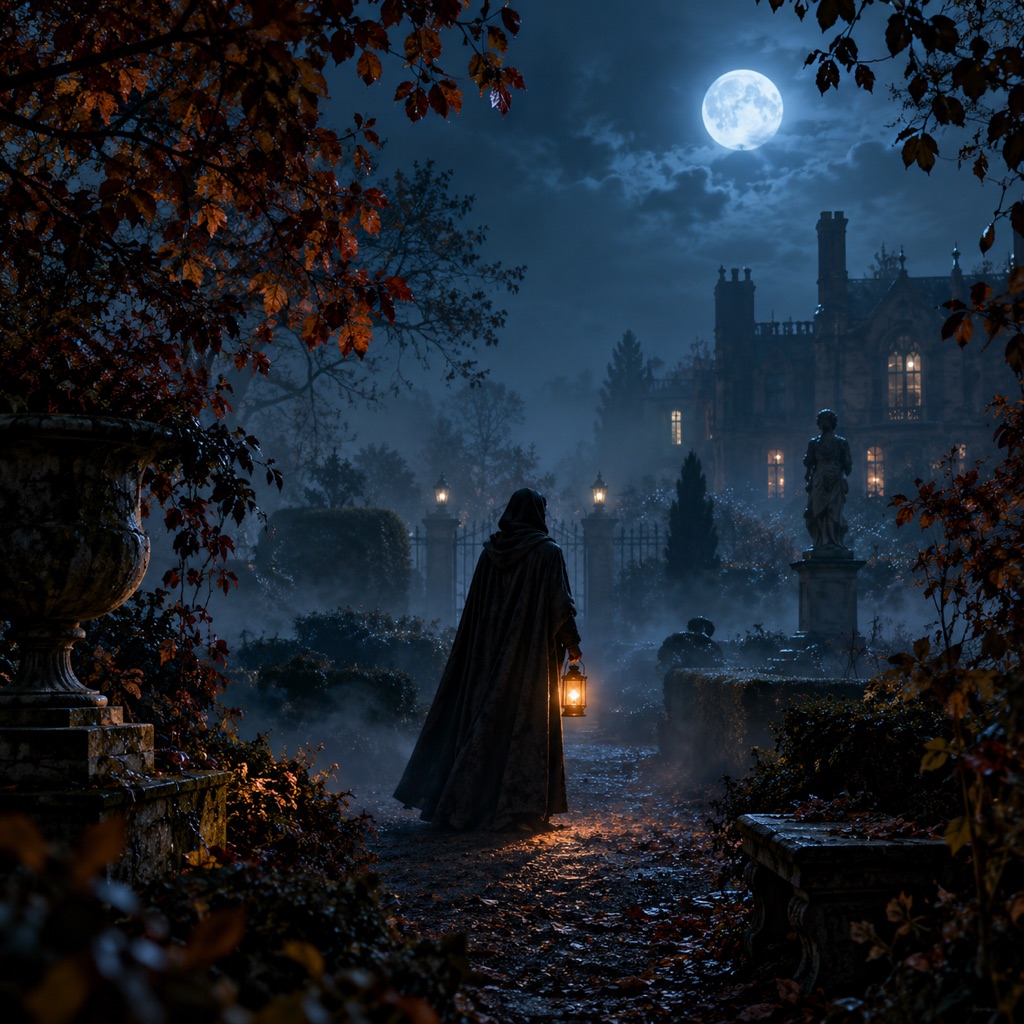
Use the provided image as the exact visual reference and starting composition. Create a continuous five-second cinematic clip. A moonlit Victorian garden with a lone figure standing among dark autumn foliage. Low fog drifts through the garden while the figure’s cloak and hair move gently in the breeze. The camera pushes in slowly and smoothly, revealing the figure’s face at the end. Keep the lighting stable and the motion subtle. Keep realistic motion, stable anatomy, and consistent lighting. Preserve the same identity, costume, and hairstyle as the reference frame. Do not add characters, replace the costume, or introduce sudden scene cuts. No text and no watermarks.
Image to video
Lantern Flicker
A portrait where the light itself does the acting.
Prompt
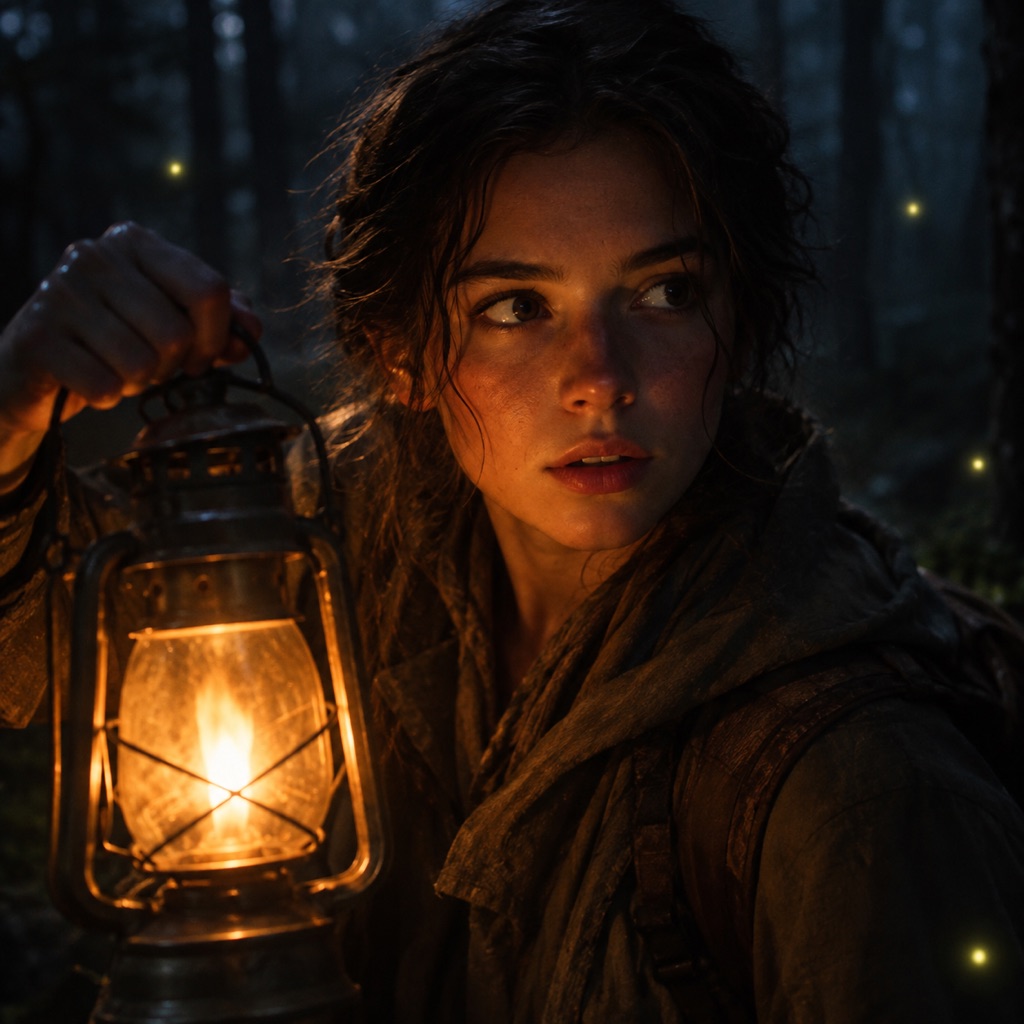
Use the provided image as the exact visual reference and starting composition. Create a continuous five-second cinematic clip. A close portrait of a person holding a warm lantern in a dark forest. The lantern light flickers gently across the face while the background stays in deep shadow. A few fireflies drift past. The subject blinks once and offers a subtle smile. The camera remains mostly steady with a tiny handheld float. Keep realistic motion, stable anatomy, and consistent lighting. Preserve the same identity, costume, and hairstyle as the reference frame. Do not add characters, replace the costume, or introduce sudden scene cuts. No text and no watermarks.
Candlelit Head Turn is the safest portrait motion. The subject turns their head toward the camera while the candle flames flicker and a thin fog drifts across the floor. The camera pushes in very slowly. There is only one large motion, so the model has less opportunity to distort the face.
Fog Push-In is a scene motion rather than a face motion. The figure stands still while the fog moves and the camera pushes in. This is a good choice when the portrait is strong but the expression is not. The environment does the acting.
Lantern Flicker is a lighting motion. The subject stays mostly still, the lantern light flickers across the face, and a few fireflies drift past. It is the most atmospheric of the three and the least demanding on anatomy.
Subject motion. What does the person do? Keep it small: blink once, turn the head slowly, breathe, smile subtly, lift one hand. Avoid walking, dancing, or fast turns in the first version.
Environment motion. What moves around the subject? Fog, hair, fabric, candle flames, leaves, rain, fireflies, or a curtain. One or two elements are enough.
Camera motion. What does the camera do? A slow push-in, a gentle handheld float, a small orbit, or a locked-off shot. Pick one. Multiple camera moves in five seconds feel chaotic.
Then add the consistency rules: keep the identity, costume, hairstyle, and lighting consistent; do not add characters; do not replace the costume; do not cut the scene; no text or watermarks.
The failures are predictable. A face that changes shape during a turn. A hand that grows an extra finger. A costume that changes color between frames. Fog that moves like a flat texture. A camera move that accelerates halfway through.
Most of these come from asking for too much motion. A five-second clip does not need a storyline. It needs one gesture and one atmosphere cue. If the first result is unstable, cut the motion in half and generate again. A subtle clip that holds up on a phone screen is better than an ambitious clip that warps.
A vertical 9:16 clip is the right choice for TikTok, Reels, and Shorts. A 16:9 clip is better for YouTube, a website hero, or a landscape post. Square 1:1 works for feed posts and some ads.
Five seconds is enough for a loop or a reveal. If you need a longer clip, generate two or three short shots and cut them together rather than asking one generation to carry a long scene. Short shots also give you more chances to catch a bad frame before you publish.
Here is a workflow that produces a week of posts without a shoot:
Generate three portraits from the same source photo: one costume, one atmosphere edit, one pet or couple image.
Animate the strongest portrait with a head turn.
Animate the atmosphere edit with fog and a push-in.
Use the third image as a still post or a thumbnail.
Write one short caption for each clip and link back to the page that matches the look.
The images and videos can share a visual language because they come from the same source. That consistency is what makes a seasonal campaign feel designed rather than improvised.
Video generation uses credits, and the current plans are listed on the pricing page. Video costs more than a still image because it processes more frames. Generate the still first, approve it, and only then spend credits on motion. If a clip fails, adjust the prompt instead of repeatedly generating the same motion.
The hosted video workspace is built for short-form clips, not long-form film. Expect five-second shots, subtle motion, and a portrait-first workflow. Within those limits, it is a fast way to turn a Halloween image into a post that moves.
Five seconds is the practical default. It is long enough for a head turn or a fog drift and short enough to keep the face stable. Longer clips are better built from multiple short shots.
The model is inventing frames between the start and the end. Large motion gives it more room to drift. Reduce the motion, keep the camera stable, and repeat the identity-preservation instruction.
Audio support depends on the selected video workflow and plan. Check the video workspace and the pricing page for the current options before you plan a post with sound.
Commercial use depends on your plan, the model or provider terms, your rights in the source photo, and local law. Review the terms of service before using a clip in an ad or a client project.
Generate the still first. Open the AI video generator, upload the portrait, and start with a head turn. One small motion is enough to make the image feel alive.

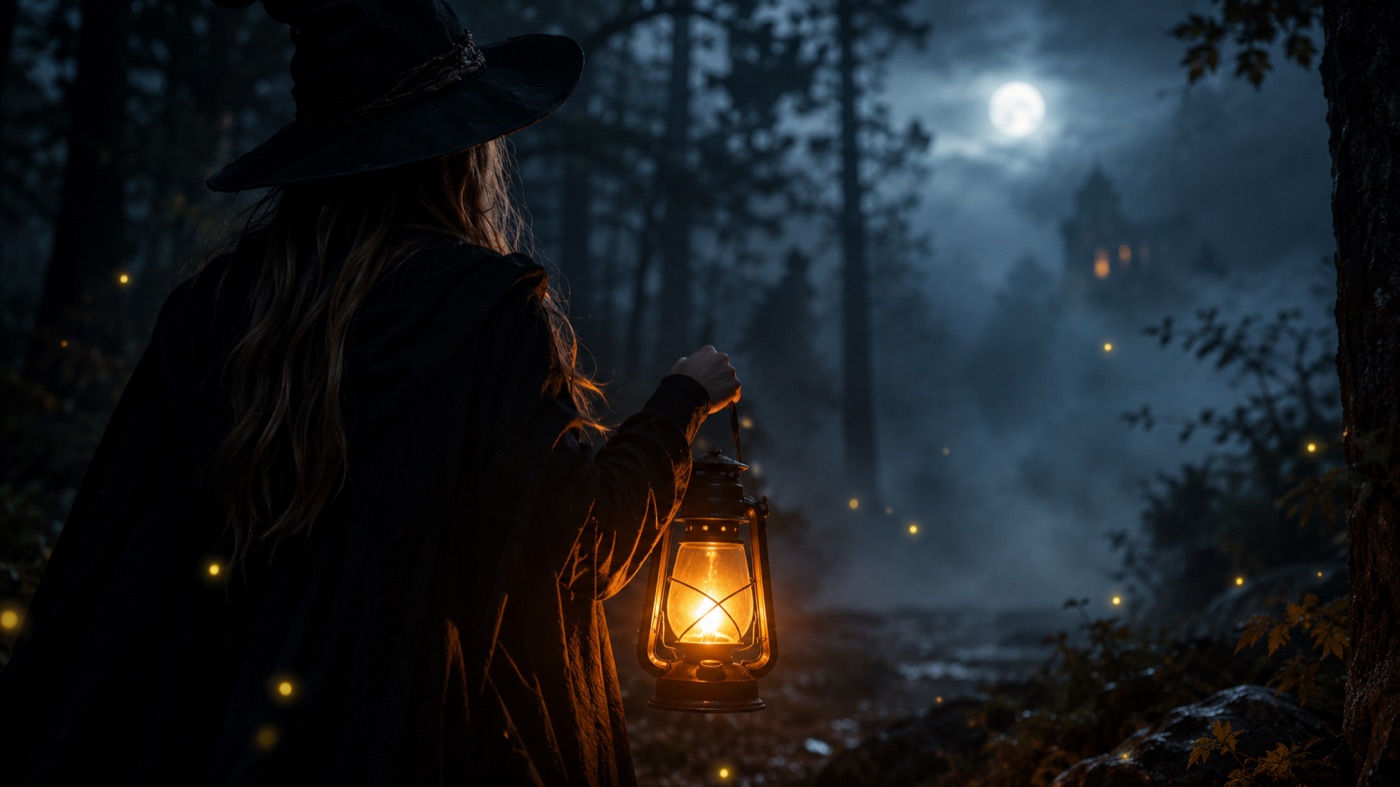
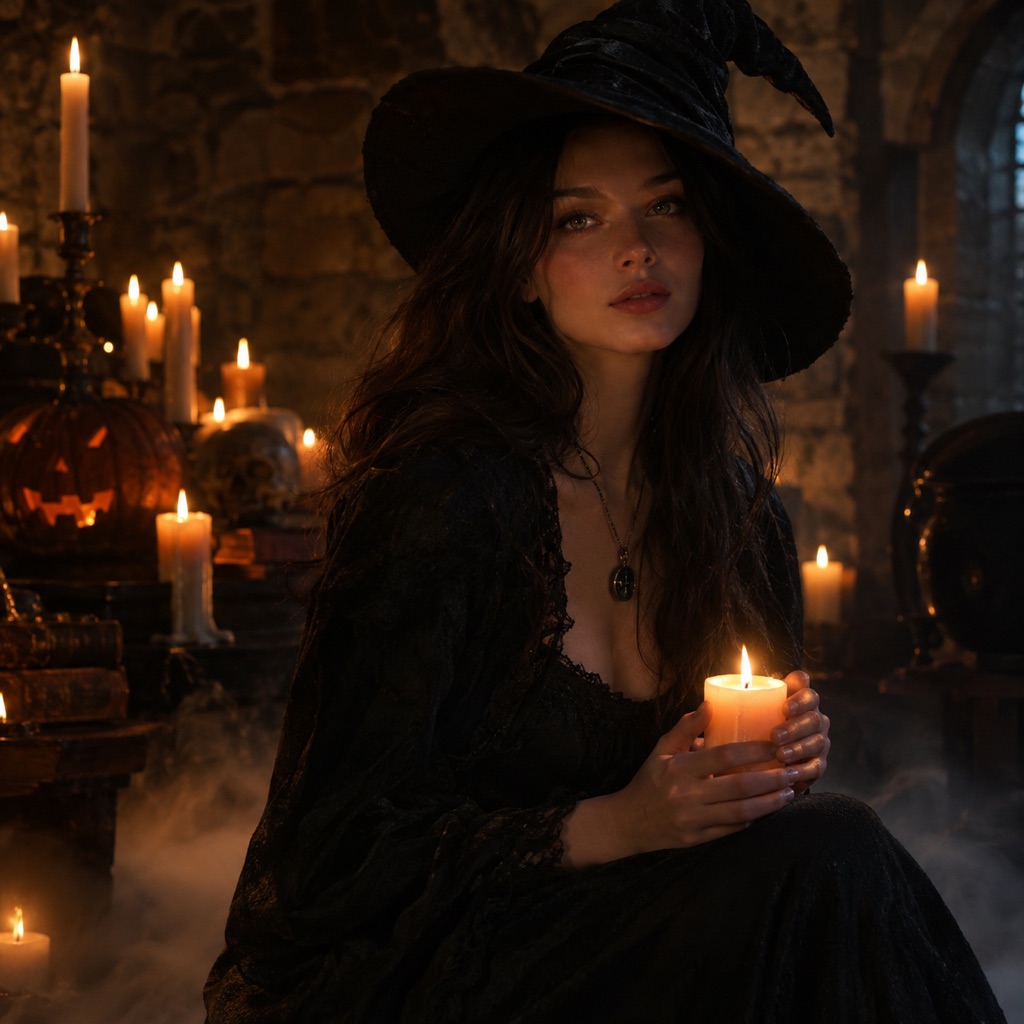 Image to video